Imports

Import Attribute and Field values into SkuDB

The Imports table allows you to load/import attribute values and field values using a standardized import template.
an image of a dialog box with a dropdown displaying several different types of imports. The lists shows that Class Items, Master Items, Categories, Style Guides, and Terms can all be imported. Ther is also a scrollbar to the right showing that more imports exist below what is currently displayed.

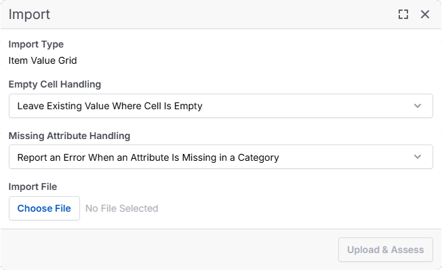
Help text related to imports is included in app. One key feature of the import functionality is the “Upload & Assess” feature. This allows you to load an import file and validate outcomes BEFORE approving the import job. Imports also allow you to control how blank values are handled and how missing attributes are handled.
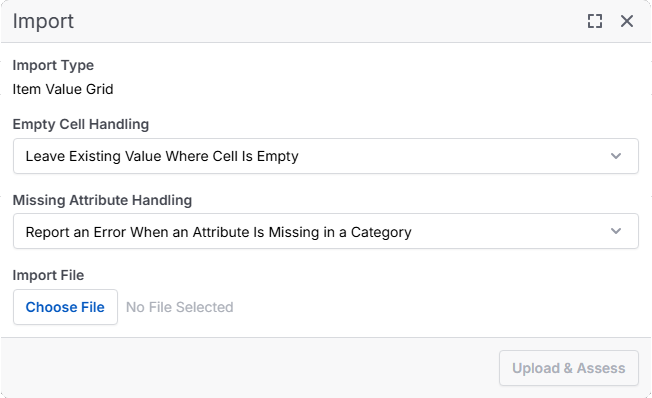
a dialog displaying the word Import at the top, and four subsections within the dialog: Import Type, showing the import type is an Item Value Grid. Empty Cell Handling, a dropdown currently displaying Leave Existing Value Where Cell Is Empty. Missing Attribute Handling, a dropdown currently displaying Report an Error When an Attribute Is Missing in a Category. and Import File, with a button displaying Choose File, and greyed out text to its right which says No File Selected. a button is also at the bottom right on the dialog, displaying the words Upload & Assess. It is also greyed out.

After an import is completed successfully, an import result summary is generated and stored for reference.
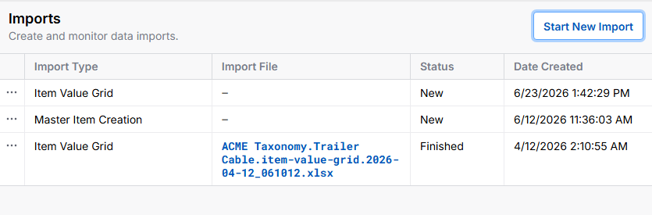
An import results summary is displayed, showing the Import Type, Import File, Status, and Date Created. In the table are three rows, of type Item Valuye Grid, Master Item Creation, and Item Value Grid. The first two have no import file listed, and a status of new, with create dates of June 23rd and June 12th. The third, Item Value Grid, shows an Import File called ACME Taxonomy.Trailer Cable.item-value-grid.2026-04-12_061012.xlsx, with a status of Finished, and a Date Created of April 12th, 2026.

Import a Category or Set of Categories