SkuDB is a a modeling and design environment for creating product taxonomy, attributes and other data structures intended for ERP, PIM and eCommerce applications. The application is widely used by distributors, manufacturers and retailers to build product taxonomies and other data structures.
Core Functionalities
Hierarchy Design
Hierarchy Metadata Design
Item Classification
Attribute Design
Attribute Inheritance Design
Attribute Metadata Design
Attribute Data Fill
Data Reporting & Visualization
1 - Projects
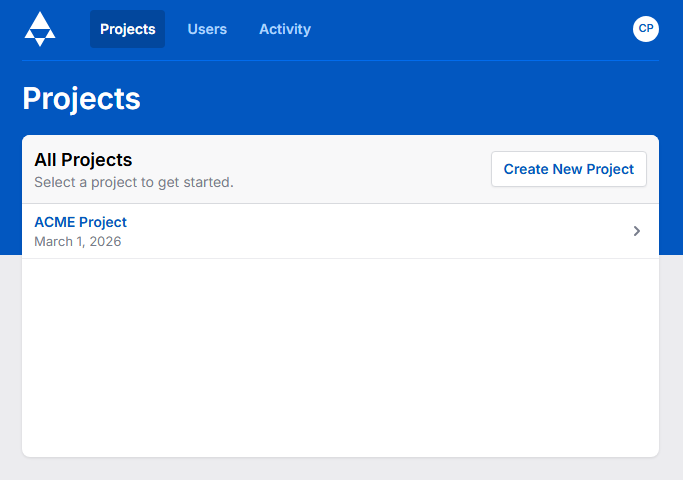
Select a project, update user settings, and view activity
The Projects page can be reached via the pyramid icon in the Top Left or the Person Icon in the bottom left. The “Log out” selection allows for quick log out of the SkuDB instance. The “Account” selection brings a user to the Projects page where they can perform the following functions:
Open an existing Project
Create a New Project
Logout
Administrative users have the additional ability to create new users and to view the system activity dashboard.
2 - Navigation
Learn how to get around SkuDB
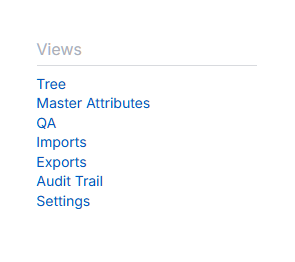
To navigate between the views in SkuDB, open a new tab or pane. Navigate between the following views:
Dashboard
A high-level summary of the hierarchies in the project.
Tree
Open a tree view containing all hierarchies and categories in the project
Search
Search item IDs across the project.
Chatbot
An ai-powered chat that brings project data into the context of the conversation. The chat can run read-only SQL queries to view any requested vertical(s). Requires configuration in “Settings” view.
Master Attributes:
A list of all unique attributes in the project, with summary statistics.
Fields
Fields view is where fields can be added to categories, attributes, items, issue log, QA, etc.
Issues
The issue log is the central repository for all issues across the project. New issue fields can be added from the Fields view.
Imports
The imports view is where attribute values and field values can be uploaded. Includes various options for controlling import behavior and includes preview and reporting.
Exports
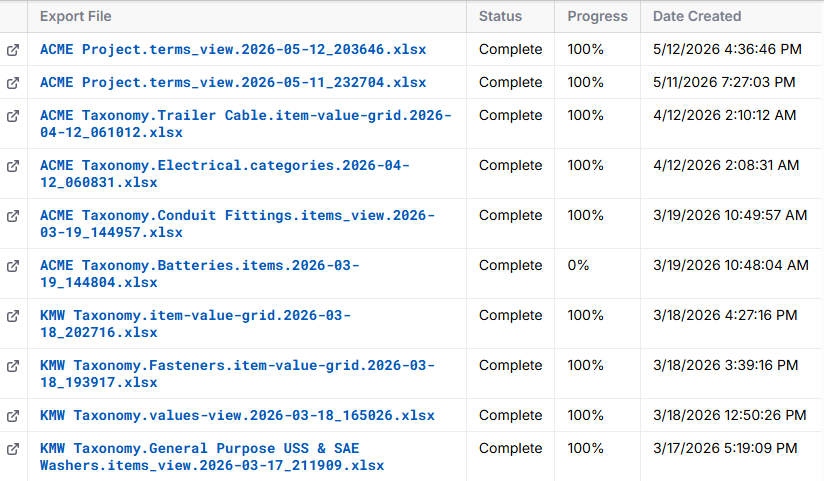
The Exports view lists all current user-generated exports.
QA
The QA module contains a term dictionary and style guidelines. Add new QA fields from Fields view.
Settings
Project-wide settings, including project name, item tiers and names, chatbot configuration, and preview mode configuration.
3 - Tree view
The primary method of viewing and altering the hierarchy within a project
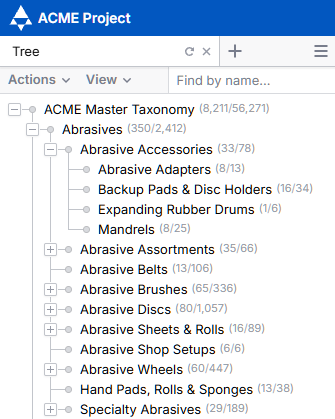
Within the project, hierarchies are displayed as a branching tree.
Each hierarchy level can be toggled to display child categories down to the terminal level.
Hierarchy Menu
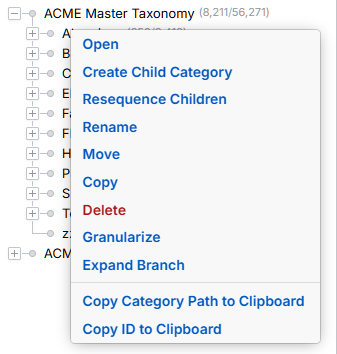
Right clicking anywhere in the hierarchy tree prompts a dropdown menu containing the following options:
Open
Opens the selected category. Categories will open to the default view in the last active pane.
Rename
Rename the selected category
Move
Move the selected category to a new location in the hierarchy
Delete
Delete the selected category or hierarchy branch.
Copy
Copy the selected category or hierarchy branch.
Create Child Category
Create a child category under the currently selected category.
Create Issue
Create a new issue on the category
Expand Branch
Open all child nodes under a selected branch.
Sequencing
Set the sequence of the child categories
Granularize
Granularize the hierarchy based on the values of a selected attribute.
Hierarchy Search
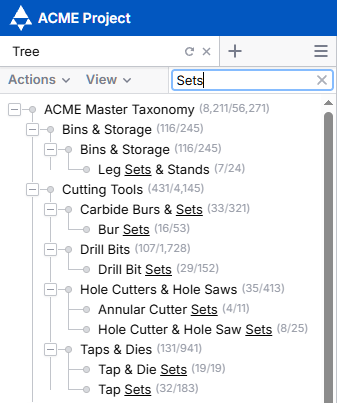
The search box can be used to enter all or part of a category name to search across all hierarchies and categories in a project.
4 - Category Views
Standardized views across all categories of SkuDB
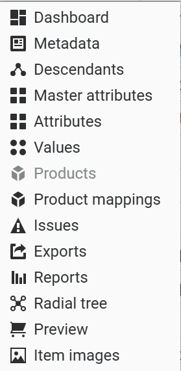
Each category has the following standard view, which can be accessed by opening a category:
4.1 - Dashboard
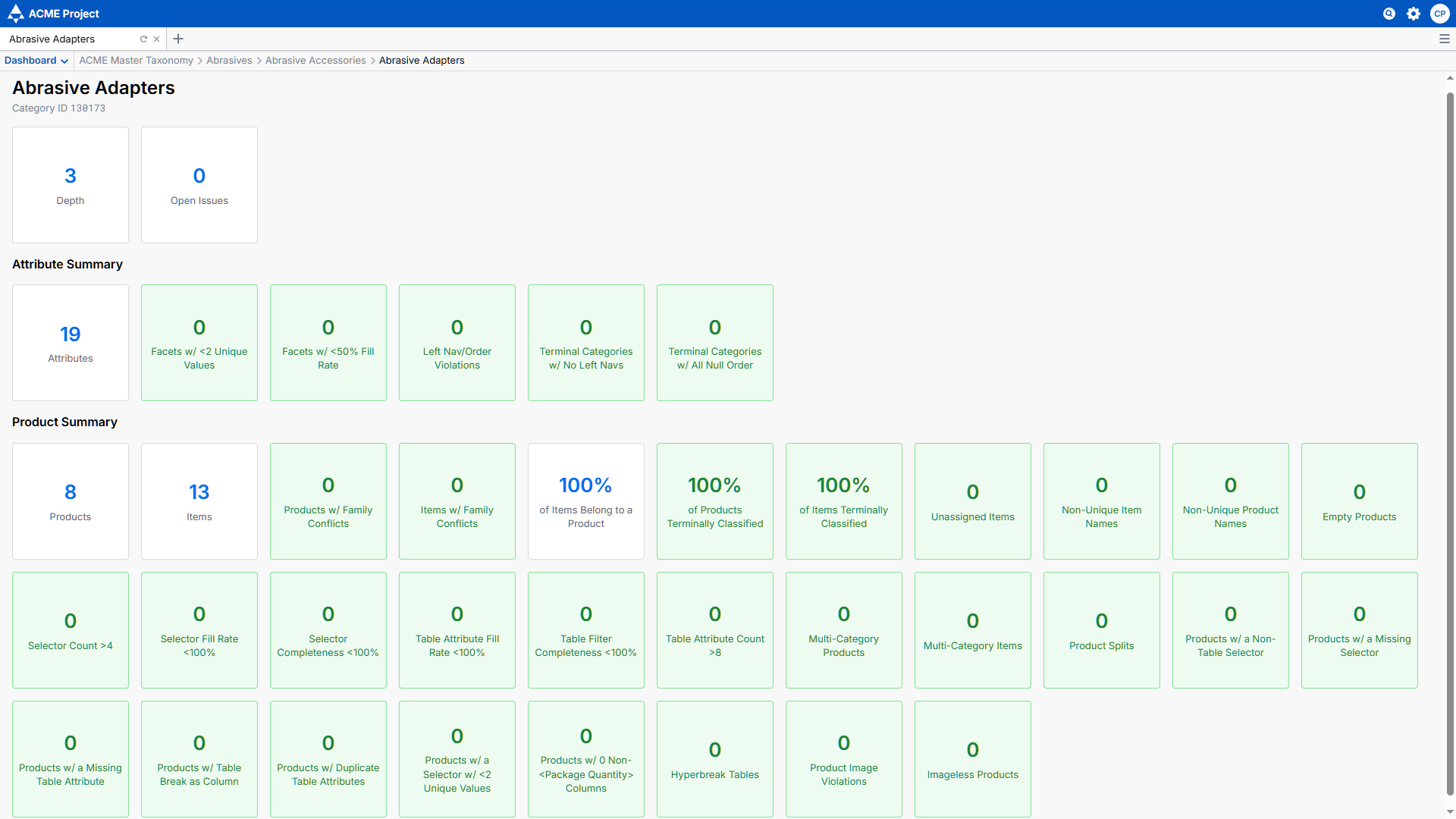
Contains basic statistics about a category or branch. Can be customized to include any project summary information.
In its default state, the dashboard displays basic statistics about a category or branch.
It can be customized to include data quality rules, before and after summaries, and other project-specific summary information.
The SkuDB dashboard can be customized with any set of analyses, tailored to a given project. The image above shows an example set of customized metrics, with many slices of the data available at a glance. All aspects can be customized upon request, including both style and content.
4.2 - Metadata
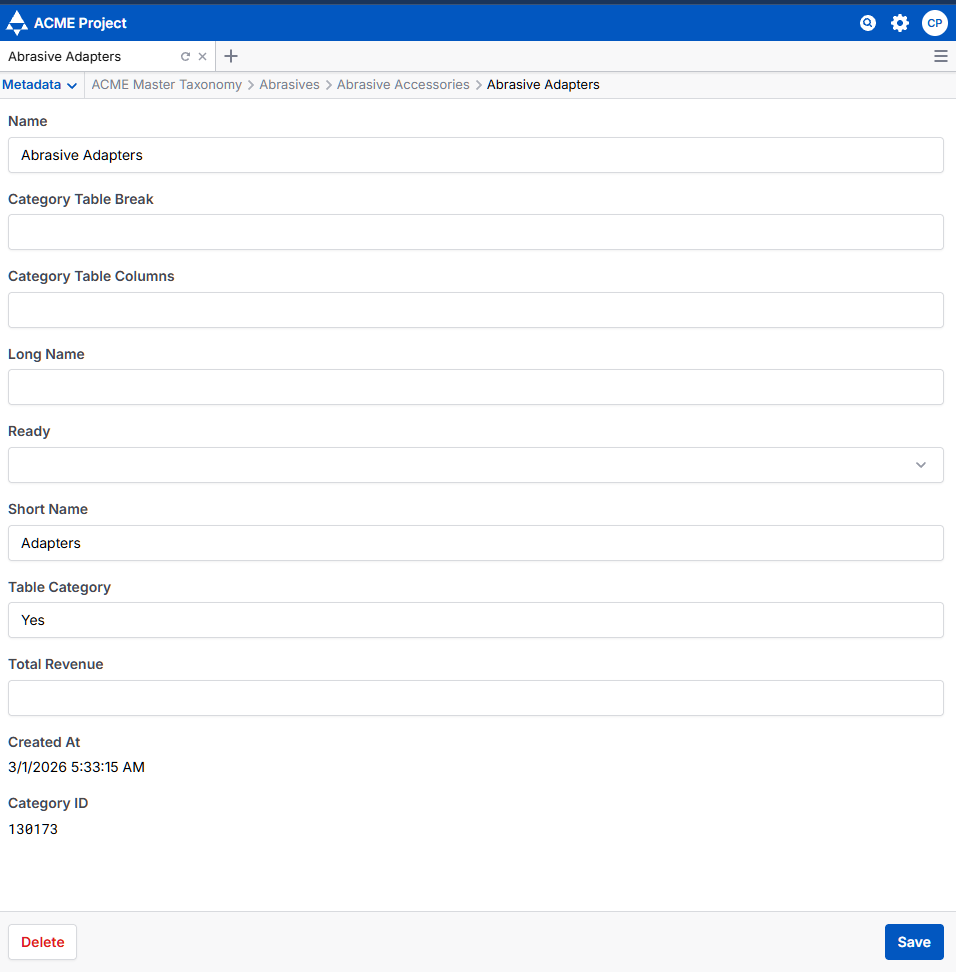
Contains category field values, as defined in the Fields view.
The category metadata view allows you to update the metadata attached to a given category, without leaving the category tab. An unlimited number of metadata can be tracked here. For more information on adding new metadata fields, see Fields.
4.3 - Descendants
A table-view summary of child categories.
The Descendants tab contains a spreadsheet view of all the child categories of the selected category, with columns for standard or user defined fields including category name, category path, description, child counts, category level, variant type, category ID, and a creation timestamp.
A dropdown menu provides the following functionality:
Move Selected Categories
Delete Selected Categories
View all descendants, or view terminal categories only
Control the Number of Categories Displayed
Control the Columns Displayed
Control the Levels of Categories Displayed
The Descendants view contains the same fields as displayed in the Metadata view, as well as standard columns like Child Count and Item Count to provide the most commonly used metrics out of the box.
4.4 - Master Attributes
A consolidated list of unique attributes in the project, including summary statistics.
The Master Attributes view contains a searchable list of unique attributes throughout the project, and metadata about said attributes. Any fields on the attributes will also be displayed here.
Multiple Values for a Single Field
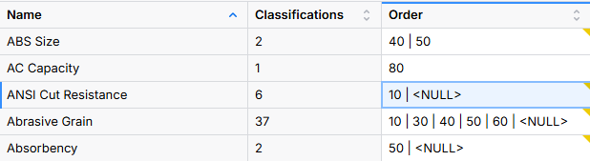
Note that when viewing Master Attributes from a non-terminal category, all values held by that attribute for a given field will be displayed in that field, separated by a pipe | delimiter. You can double-click on the field value to see all category paths containing the attribute, as well as each value held by the field within a given category path.
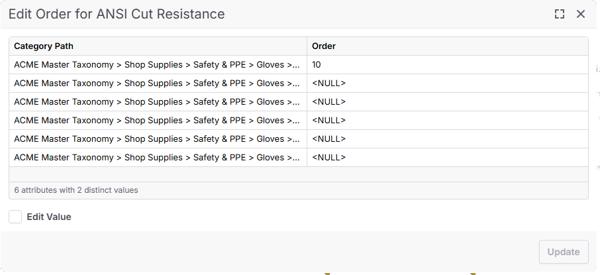
Example - ANSI Cut Resistance Order
Attributes with differing values in different classifications will show all values within a cell, separated by a pipe | character.
When an attribute has multiple values in different categories, you can double-click the field to trace their origins.
4.5 - Attributes
A list of all attributes related to the category, including global attributes, inherited attributes, and category-specific attributes. Also includes any attribute fields set up via the Fields view.
The Attributes tab contains a spreadsheet view of all the attributes in the category, with columns for standard or user defined metadata fields including attribute name, attribute ID, breadcrumb, units of measure, allowed values, data type, display type, rank, required, sample values, and a creation timestamp.
A dropdown menu provides the following functionality:
Create New Attributes
Copy Attributes
Merge Attributes
Promote Attribute to a higher Hierarchy Level
Delete Attributes
Recalculate Attribute Fill Rates
Export Attributes
Control the Number of Attributes Displayed
Control the Columns Displayed
Control the Levels of Attributes Displayed
Single Value vs. Multivalue
An attribute can be single-valued or multivalued. Multivalued attributes can have multiple pipe-delimited values assigned to a single attribute. By default, SkuDB will order these values alphanumerically.
The pipe | is a reserved character in SkuDB. Any values using this character will be treated as multivalues. In the Values view, each pipe-delimited value will be treated as a separate entry. This means that a value like “metal | plastic” will appear as two separate values in the Values view: metal, and plastic.
4.6 - Values
An editable list of category-specific attribute values. Contains each unique value for each attribute.
The Values tab contains a spreadsheet view of all unique values in the category, with columns for standard or user defined metadata fields including attribute name, value, ID, breadcrumb, units of measure, and a creation timestamp.
A dropdown menu provides the following functionality:
Create New Value
Delete Selected Value
Export Values
Control the Number of Values Displayed
Control the Columns Displayed
Control the Levels of Attributes Displayed
4.7 - Products
The primary “grid view” of items and attributes. Includes a toggle between product-level and item-level entities.
The Items tab contains a spreadsheet view of all the items and/or products in the category, with columns for standard or user defined metadata fields including Item ID, and a creation timestamp. The default item tier names can be updated in the project’s Item Tiers Settings.
The Items tab features icons at the far left for “card view” and “image view” and can be customized to contain quick links to other content as needed (e.g., source url, data sheet)
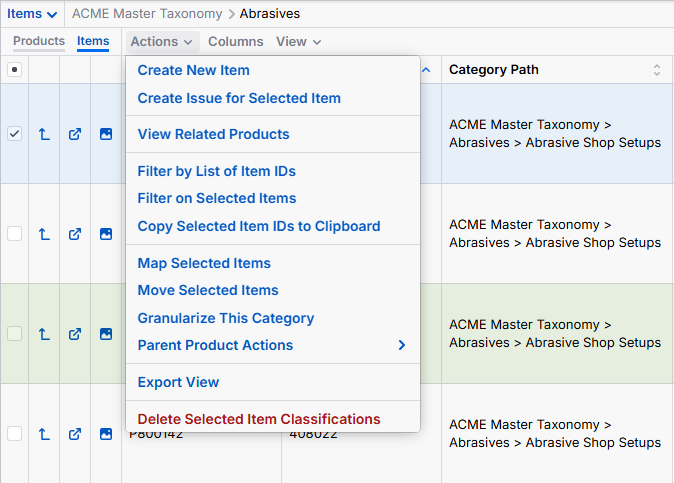
A dropdown menu provides the following functionality:
Create New Items
Create new Attribute
Delete Item Classification
Create Issue
Move Selected Items
Fill Attribute Values & Field Values
Transfer Values
Export
Parent Product Actions
Filter on Selected Items
4.8 - Product Mappings
A summary of item mappings across hierarchies. Product Mappings are only relevant when items are classified to mlutiple hierarchies.
4.9 - Category Issues
The category-specific issue log
The Issues tab contains a spreadsheet view of all the issues opened in the selected category, with columns for standard and user-defined metadata fields (e.g., issue name, status, author, description, priority).
By selecting “Edit Issue View,” the icon in the second column of the issue log’s spreadsheet view, you can bring up a popup view of all fields related to the issue. This can be helpful in issue review or editing.
There are also dropdown menus for creating and deleting issues, controlling pagination, toggling on/off columns & other configuration options.
4.10 - Exports
Displays all available standard and custom exports, grouped by type.
The Exports tab offers data export originating in the selected category. If exports are required from the entire hierarchy, open Exports from the Root category. Exports display a progress metric and have a cancel button.
SkuDB’s standard exports include:
Category Export
Attribution Export
Item Export
Issue Export
Value Export
Stacked Value Export
4.11 - Reports
Summary reports pertaining to the hierarchy, items, and attributes.
Reports provide a way of visualizing statistical information about the data contained in the SkuDB instance. Reports give information on categories and items through a variety of metrics that are useful for QA, descriptive summaries and as design aids.
Reports are typically filterable to include terminal categories, or categories only on certain levels.
Reports can often be toggled between a graphical display and a table of information. Additionally, the scale can typically be adjusted between linear and logarithmic.
Standard reports include:
Children per Category
Category Name Length
Attributes per Category
Attribute Name Length
Items per Category
Items Concentration
Items Burial
4.12 - Radial Tree
A radial tree view of the hierarchy, with the selected category as the center point. If root is selected, allows for a radial view of the entire hierarchy.
The Radial Tree view provides a radial graph of the hierarchy structure from the selected category and down. This is an adjustable graphical representation of the hierarchy that is useful for QA, descriptive summaries, and as a design aid.
The radial graph is adjustable on the following parameters: Label Size, Orbit Radius, Category Radius, Extent, and Rotation. There are also buttons to Reset Controls and Toggle Fullscreen.
4.13 - Preview
An alternate view of items/products in the category that can be customized to reflect the expected display view.
The Preview mode simulates a web navigation experience based on the current state of the selected category and its children. Categories appear as if laid out on a webpage, with a search bar across the top, followed by category tiles, and with a listing of items and a navigation filter below. Preview is a useful mockup of the hierarchy design. It can also be valuable as a classification aid.
While SkuDB comes equipped with a default Preview Mode UI mirroring the typical features of a modern ecommerce experience, it can also be customized to mirror the expected display of category and product landing pages.
5 - Fields
A method to store non-Attribute metadata on categories and items
The Fields view allows a user to define any custom string or select fields on categories, attributes, values, items, units & issues. When creating a new field, a user may define a string field as WYSIWYG, meaning it will be larger with some basic formatting features like bold, italics, bullets, or numbered lists.
The Fields view lists all user-created fields that are stored on the SkuDB instance. The Fields view displays the Field’s location, name, description, and type.
Fields are editable. To edit an already existing field, click on the field “Name”, and edit the available metadata. When done editing click “Save” to implement your changes. To delete a field, use the edit function, and then click “Delete” in the bottom left-hand corner of the page.
To create a new Field, click the “New Field” button in the top right corner of the page. Then fill out the required metadata on the field creation page and click the “Create” button to create the field.
6 - Settings
Configurable parameters to customize your project
The Project Settings view allows a user to configure certain aspects of the project setup. There are four main tabs under the project settings: Summary, Item Tiers, Freeze and Preview.
Summary
The summary tab allows the user to define and edit the project name.
Item Tiers
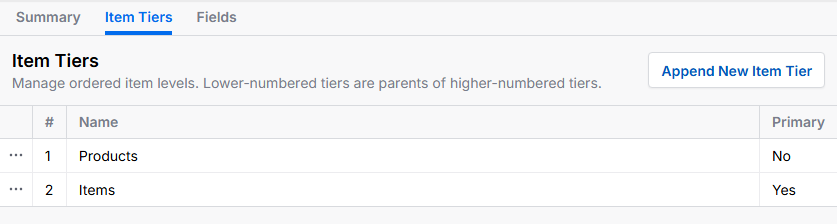
The Items Tiers tab allows a user to set and establish item tiers in a multi-tiered data model. For example, in the image below there are three tiers, each a subset of the others. The interface defines which tier is the primary tier and allows a user to rename or delete the tiers.
Preview Settings
The Preview settings allow a user to define which attribute is used for navigation in the Preview view.
7 - Exports
View exports made from anywhere in SkuDB
The Recent Project Exports tab lists all the export requests across the project, as well as their timestamp. Clicking on an export file will allow a user to redownload an export, rather than regenerating the export.
8 - Imports
Import Attribute and Field values into SkuDB
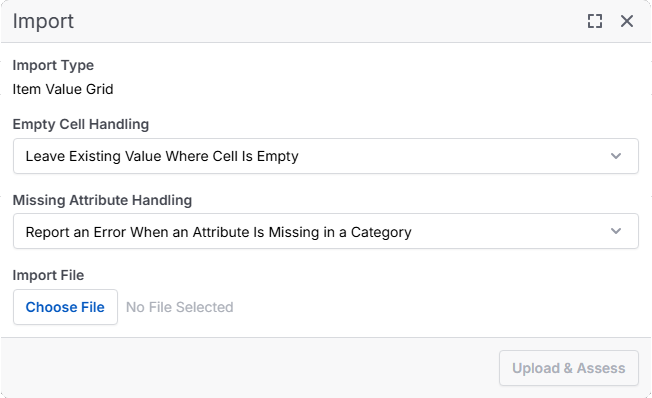
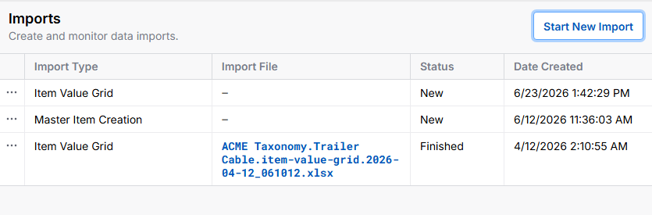
The Imports table allows you to load/import attribute values and field values using a standardized import template.
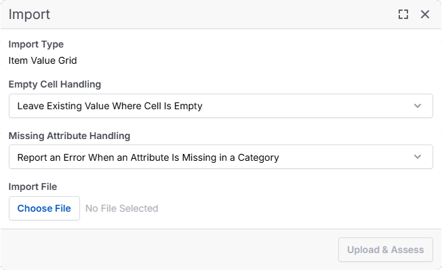
Help text related to imports is included in app. One key feature of the import functionality is the “Upload & Assess” feature. This allows you to load an import file and validate outcomes BEFORE approving the import job. Imports also allow you to control how blank values are handled and how missing attributes are handled.
After an import is completed successfully, an import result summary is generated and stored for reference.
Import a Category or Set of Categories
9 - Issues
A centralized location to track all issues across the hierarchy
The Issues page provides a centralized place to track all issues across the hierarchy.
The Issues page contains a spreadsheet view of all the issues opened in the selected category, with columns for standard or user defined metadata fields including issue name, “closed?”, issue author, description, and a creation timestamp.
The Issues page contains the “Edit Issue View” feature, which allows a user to select the icon in the second column and see a popup view of all fields related to the issue. This can be helpful in issue review or editing.
There is also a drop-down menu to create and delete issues, control how many issues are displayed, toggle on/off columns and other configuration options.
When creating an issue in the global issues view, a user may select “+ Create new issue” from the “Actions” drop down. This will open the issue creation form with the type-ahead field for selecting the issue location.
10 - QA
Style Guide and Term rules help teams normalize and maintain data effectively
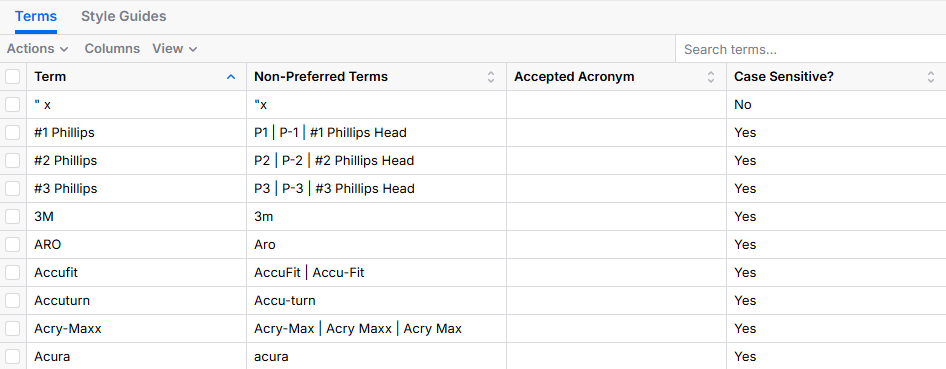
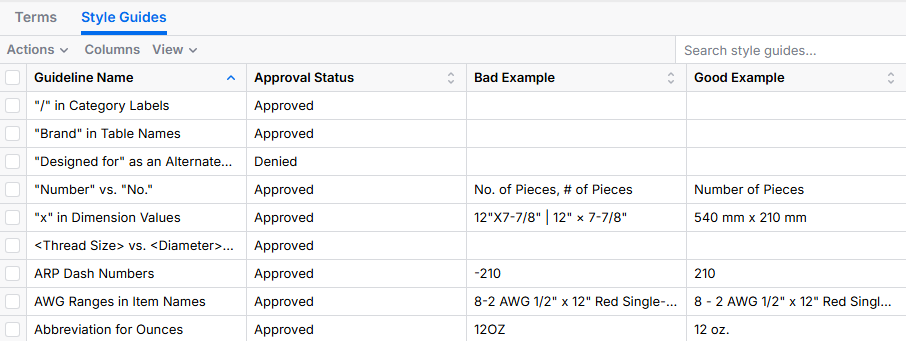
The QA section includes a configurable term dictionary and style guideline module. These views are customizable via the Fields view.
Terms
The Term Dictionary is typically used to document preferred and non-preferred terms, and to track additional metadata at the term level (definition, term type, open issues).
Style Guides
The Style Guidelines module is typically used to maintain rules related to formatting of categories, attributes, item names, etc. This view is also configurable using the Fields view.

![An image of a radial tree view, displaying each category under the [Abrasives] L1 as a dot orbiting a central point, representing the parent category. Categories with higher product counts are displayed in red, while lower counts display green. Categories between the min and max threshold appear more green, yellow, or red depending on product count.](/category-views/radial-tree/radial-tree-new_hu_8e21c842671af6e8.png)